Command-Line Interface (CLI)
Project Succession includes a command-line interface for automation and headless operation.
Note: CLI access requires a Business plan or higher.
Installation
The CLI is included with Project Succession:
- Windows:
succession.exein installation directory - macOS:
successionin installation directory - Linux:
successionin installation directory
You can add the installation directory to your PATH variable for global access.
Basic Usage
succession <COMMAND> [OPTIONS]Commands
help
Display help information
succession --helpShows available commands and options.
Service Management
start-service
Start the Succession backend service
succession start-serviceStarts the backend service that runs pipelines.
stop-service
Stop the Succession backend service
succession stop-serviceStops the running backend service.
status
Check if Succession service is running
succession statusReturns the current status of the backend service.
Graph Management
deploy-graph
Deploy a new graph from file
succession deploy-graph <file>Arguments:
<file>: Path to the graph.jsonfile
Example:
succession deploy-graph C:/pipelines/render.jsonDeploys the graph and starts execution. The graph will run in the background with all triggers active.
Output:
✓ Graph deployed successfully!
  Name:             Render Pipeline
  File:             C:/pipelines/render.json
  Status:           Running
  Active workflows: 0
update-graph
Update an existing deployed graph
succession update-graph <file>Arguments:
<file>: Path to the graph.jsonfile
Example:
succession update-graph C:/pipelines/render.jsonAtomically stops the old version and deploys the new version. Preserves deployment time.
Output:
✓ Graph updated successfully!
  Name:             Render Pipeline
  File:             C:/pipelines/render.json
  Status:           Running
  Active workflows: 0
stop-graph
Stop a deployed graph
succession stop-graph <file>Arguments:
<file>: Path to the graph.jsonfile
Example:
succession stop-graph C:/pipelines/render.jsonStops execution and removes the graph from the deployed list. To run it again, you must redeploy.
Output:
✓ Graph stopped successfully!list-graphs
List all deployed graphs
succession list-graphsShows all currently deployed graphs with their status.
Output:
╔════════════════════════════════════════════════════════════════╗
║                    Deployed Graphs                             ║
╚════════════════════════════════════════════════════════════════╝

  Name:             Render Pipeline
  File:             C:/pipelines/render.json
  Status:           Running
  Active workflows: 2
  ────────────────────────────────────────────────────────────
  Name:             Backup Automation
  File:             C:/pipelines/backup.json
  Status:           Running
  Active workflows: 0
  ────────────────────────────────────────────────────────────
health-check
Check health of deployed graph(s)
# Check all graphs
succession health-check

# Check specific graph
succession health-check <file>
Arguments (optional):
<file>: Path to specific graph to check. Omit to check all graphs.
Examples:
# Check all deployed graphs
succession health-check

# Check specific graph
succession health-check C:/pipelines/render.json
Output (specific graph):
  Status:           Healthy
  Active workflows: 2
  Task count:       5
  Uptime:           3600 seconds
Output (all graphs):
╔════════════════════════════════════════════════════════════════╗
║                    Graph Health Status                         ║
╚════════════════════════════════════════════════════════════════╝

  Graph:            C:/pipelines/render.json
  Status:           Healthy
  Active workflows: 2
  Task count:       5
  Uptime:           3600 seconds
  ────────────────────────────────────────────────────────────
  Graph:            C:/pipelines/backup.json
  Status:           Degraded
  Active workflows: 0
  Task count:       3
  Uptime:           1200 seconds
  Last error:       Connection timeout
  ────────────────────────────────────────────────────────────
License Management
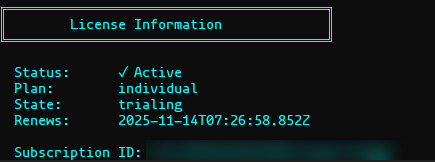
license-status
Show current license status
succession license-statusDisplays:
- Current plan
- License status (active, expired, etc.)
- Expiration date (if applicable)
This command does NOT require an active license.
clear-cache
Clear license cache
succession clear-cacheClears the cached license information, forcing a fresh license check on next use.
This command does NOT require an active license.
Global Options
-h,--help: Show help information
License Requirements
Most CLI commands require:
- Active License: License must be active (not expired or canceled)
- Business Plan or Higher: CLI access is not available on Indie or Studio plans
Commands that work without a license:
helplicense-statusclear-cache
Exit Codes
The CLI uses standard exit codes:
| Code | Meaning |
|---|---|
| 0 | Success |
| 1 | General error or license check failed |
Example Workflows
Deploy and Manage a Graph
# Start the backend service
succession start-service

# Deploy a graph
succession deploy-graph C:/pipelines/render.json

# Check status
succession status

# List all deployed graphs
succession list-graphs

# Check health
succession health-check

# Update the graph after making changes
succession update-graph C:/pipelines/render.json

# Stop when done
succession stop-graph C:/pipelines/render.json
succession stop-service
Deploy Multiple Graphs
# Start the service
succession start-service

# Deploy multiple graphs simultaneously
succession deploy-graph C:/pipelines/render.json
succession deploy-graph C:/pipelines/backup.json
succession deploy-graph C:/pipelines/alerts.json

# Check all graphs are running
succession list-graphs

# Monitor health of all graphs
succession health-check

# Stop a specific graph
succession stop-graph C:/pipelines/backup.json

# List remaining graphs
succession list-graphs
Error Messages
License Errors
“Active license required to use the CLI”
- Your license is expired or inactive
- Check your subscription in the Succession application
“CLI access requires Business plan or higher”
- Your current plan doesn’t include CLI access
- Upgrade to Business plan
“License check failed”
- Cannot validate license (network issue, etc.)
- Try
succession clear-cacheand retry
Service Errors
“Service not running”
- Backend service isn’t started
- Run
succession start-servicefirst
“Failed to connect to service”
- Service may be running on different port
- Check settings in the GUI application
Graph Errors
“Graph file not found”
- The specified file path doesn’t exist
- Check the path and try again with the correct location
“Graph already deployed”
- A graph at that file path is already running
- Use
succession update-graph <file>to redeploy it - Or use
succession stop-graph <file>first, then deploy again
“Graph not found”
- Trying to update or stop a graph that isn’t deployed
- Use
succession list-graphsto see deployed graphs - Deploy it first with
succession deploy-graph <file>
“Service responded with an error”
- The graph file may be invalid or corrupted
- Check the graph file format in the GUI application
- Review service logs for detailed error information
Configuration
The CLI reads configuration from the Succession settings file:
- Windows:
%USERPROFILE%/.project-succession/settings.json - macOS/Linux:
$HOME/.project-succession/settings.json
Settings configured in the GUI application (backend address, port, etc.) are used by the CLI.
Backend Configuration
Default backend address: http://127.0.0.1:3000
To change the backend address:
- Open Project Succession GUI
- Go to Settings → Backend
- Update the address and port
- Restart the service for changes to take effect
Path Handling
Path Normalization
File paths are automatically normalized to ensure consistency:
- Backslashes (
\) are converted to forward slashes (/) - Windows extended path prefix (
\\?\) is automatically removed - Both absolute and relative paths are supported
Examples:
# These are equivalent on Windows:
succession deploy-graph C:\pipelines\render.json
succession deploy-graph C:/pipelines/render.json
succession deploy-graph "C:\pipelines\render.json"
Path Recommendations
For Production:
- Use absolute paths for reliability
- Avoid spaces in paths (or quote the path)
- Use forward slashes for cross-platform compatibility
Example:
# Good - absolute path with forward slashes
succession deploy-graph C:/pipelines/production.json

# Also good - quoted path with backslashes (Windows)
succession deploy-graph "C:\pipelines\production.json"

# Avoid - relative path (depends on current directory)
succession deploy-graph ./pipeline.json
Advanced Usage
Automation and Scripting
The CLI is designed for automation and can be integrated into scripts:
Bash/Shell Scripts:
#!/bin/bash
# Check if service is running, start if not
if ! succession status > /dev/null 2>&1; then
    succession start-service
fi

# Deploy with error handling
if succession deploy-graph /pipelines/critical.json; then
    echo "Deployment successful"
else
    echo "Deployment failed" >&2
    exit 1
fi
Windows PowerShell:
# Check service status
$status = succession status
if ($LASTEXITCODE -ne 0) {
    succession start-service
}

# Deploy multiple graphs
Get-ChildItem C:\pipelines\*.json | ForEach-Object {
    succession deploy-graph $_.FullName
}
CI/CD Integration
Integrate with continuous deployment:
# Example GitHub Actions workflow
- name: Deploy Pipeline
  run: |
    succession start-service
    succession deploy-graph /pipelines/production.json
    succession health-check
Monitoring Integration
The health-check command returns the health status but always exits with code 0 if it can successfully query the backend (even if graphs are unhealthy). For automated alerting, you need to parse the output:
# Cron job example - parse output for monitoring
#!/bin/bash
output=$(succession health-check 2>&1)
if echo "$output" | grep -q "Degraded\|Unhealthy"; then
    /path/to/alert-script.sh "$output"
fiNote: The health-check command only fails (exit code 1) if:
- The backend service is not running
- There’s a connection error
- The command syntax is invalid
For programmatic health monitoring, use the HTTP API directly (see Graph Deployment Guide).
Related Topics
- Graph Deployment Guide - UI-based deployment and management
- Getting Started - Initial setup
- Settings - Configuration options
- Licensing - Plan features and upgrades