Getting Started
What is Project Succession?
Project Succession is a visual, node-based pipeline automation tool for game development. It runs locally on your machine and lets you connect your DCCs, define triggers, and run deterministic workflows unattended. Project Succession comes with a large amount of integrations which it uses to glue your working software together.
What platforms does it support?
Project Succession runs on Windows, Linux, and macOS.
How do I install Project Succession?
Download the installer from the download section and run it. No additional dependencies are required on Mac and Windows. For Linux you might want to look at the GitHub release to find the correct install for your distribution. I recommend not just running the .AppImage, but actually installing the application for full integration access.
Licensing & Billing
Do I need a plan?
No, you do not need a plan to use Project Succession. In the case you want to use Project Succession for free, you also don’t need any payment details or any additional details to do so. The only limitation for the free usage of Project Succession is, that you cannot use it commercially. Otherwise you get the full feature set of the individual plan.
What plans are available?
Project Succession offers Individual, Studio and Business plans. All plans include a 14-day free trial — payment details are required upfront but you won’t be charged until the trial ends. If you need a license seat system as well as an administrator tool to manage your licenses, I also provide an Enterprise license with individual pricing. For that, get in contact with me through contact@cg-jm.com
Can I cancel my subscription?
Yes. You can cancel at any time from within the app or by contacting support at contact@cg-jm.com. Your access continues until the end of the current billing period.
Do you offer refunds?
Refunds are handled on a case-by-case basis. Project Succession is sold through Paddle.com as a merchant of record. Paddle handles all the payment, as well as refunds.
What happens with my Workflows, if my subscription lapses?
Workflows are just JSON files on your machine. You can store and version control them like however you want.
Can I use Project Succession for free?
Yes, Project Succession offers a Non-Commercial free plan. As long as you don’t intend to make money with the thing you’re making, you can use Project Succession with the free plan and without any billing details at the same level as the Individual tier.
Account
How to create a Project Succession Account?
You can register a Project Succession account directly through the App.
How to delete my Project Succession Account?
You can delete your Project Succession account directly in the App through the Licensing panel.
Using the App
How do I create my first workflow?
Open Project Succession, create a new graph, and drag nodes from the node library onto the canvas. Connect node outputs to inputs to define your pipeline. Safe your graph and deploy it. You can then see it running on the deployment overview.
Are there Tutorials or help?
Yesn’t. I constantly post videos about Project Succession on my Youtube Channel. If you have specific questions on how things are done, please reach out to me, I can probably make a video about it. I would also recommend looking at my Discord, where a small community forms around Project Succession.
How do triggers work?
Triggers watch for a condition — a file change, a scheduled time, or a custom event — and automatically execute the connected workflow when that condition is met. Triggers might also carry data like a filepath or the program that triggered them, or even custom payloads in case of Webhook triggers.
Does it require an internet connection to run?
Yes. While Project Succession itself runs locally on your machine, it requires an active internet connection for its license to work as well as to leverage its full power of nodes.
Where do I find the Documentation?
The documentation is directly available though the App, within the Menu.
Can I share Workflows with my Team?
Yes, Workflows are just files on your machine. The same for Succession Solutions. so it is entirely possible to share and version control them.
Can I run multiple workflows at the same time?
Yes, you can deploy as many workflows as you need. All of them can be inspected and updated through the deployment overview.
What happens if a node fails?
Some nodes which are not recoverable stop the workflow instance at that point. But most of the nodes have a failure output where you can define a failure scenario.
Troubleshooting
The app won’t launch — what should I check?
Do you by chance already have a running instance? make sure, only one (1) instance of Project Succession runs at a time. Also check, if your virus protection did block Project Succession. And check the logs in %HOME%/.project-succession/logs/ on Windows, Mac and Linux.
On Mac
Ensure the Application is marked as runnable. For that execute
xattr -c /Applications/Project\ Succession.app/
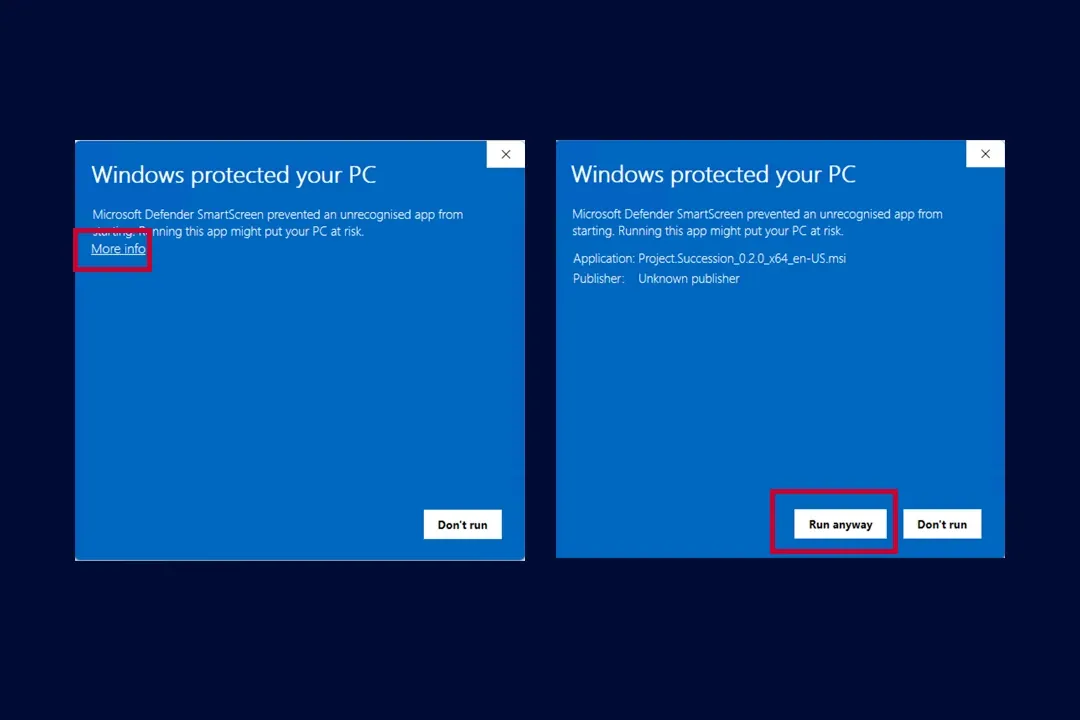
On Windows
Ensure to allow the installation and running of the App
On Linux
Ensure the Application is properly installed. Use the proper version to install.
sudo apt install ./Project.Succession_0.2.0_amd64.deb
A node is not executing — how do I debug it?
It is good practice to have the Succession Console open while executing. There all errors will be logged. you can also look for toast notifications within the software and use the log event node within your workflow to trigger custom logs. Also check all the warnings and errors on the top right of the node and you can use on the Node (in the right side bar) the tracing option to track if the node is within an execution flow.
How do I report a bug?
To report a bug, please use the Bug reporting tool within the App.
Why do I see a warning, when trying to install Project Succession?
Code signing is expensive. I develop Project Succession at the side and while I constantly update it and ensure bugs are fixed etc. I cannot afford signing the application upfront. This is of course within my priorities as soon as I get a little money from the software.
How do I update Project Succession?
If an update is available, you will see a banner within the App. From there you get to the download page easily. Simply install the new version on top of the old one.
Contact & Support
How do I get in touch?
Email me at contact@cg-jm.com or join the community on Discord.
Where can I find release notes and updates?
Release notes are posted on the Discord and on this website.